Frequently Asked Questions
Find answers to common questions about Print My Cheque Malawi
Getting Started
How do I start using Print My Cheque?
Getting started is easy! Simply follow these steps:
- Open the application in your web browser
- Select your bank from the dropdown menu
- Fill in the cheque details (payee, amount, date, etc.)
- Preview your cheque in real-time
- Click "Print My Check" to print or save
No installation required - it works directly in your browser!
Is Print My Cheque free to use?
Yes! Print My Cheque is completely free to use. There are no hidden charges, subscription fees, or premium features. You can print unlimited cheques without any cost.
What browsers are supported?
Print My Cheque works on all modern browsers including:
- Google Chrome (recommended)
- Mozilla Firefox
- Safari
- Microsoft Edge
- Opera
For the best experience, we recommend using the latest version of your browser.
Features
Can I save my cheque history?
Yes! Print My Cheque automatically saves your cheque history locally in your browser. You can:
- View all previously printed cheques
- Search and filter through history
- Reprint any previous cheque
- Export history to Excel
- Generate financial reports
Can I customize cheque positions for different banks?
Absolutely! Each bank has different cheque layouts. You can:
- Adjust field positions for each bank separately
- Drag and drop fields to precise positions
- Save custom settings for each bank
- Reset to default positions anytime
- Preview changes in real-time
Does it support multiple currencies?
Currently, Print My Cheque is optimized for Malawi Kwacha (MWK) with proper formatting for Kwacha and Tambala. The amount is automatically converted to words in the correct format for Malawi cheques.
Printing
How do I print my cheque?
Printing is simple:
- Fill in all required cheque details
- Click the "Print My Check" button
- Your browser's print dialog will open
- Select your printer and click Print
- For mobile devices, the app uses mobile-friendly printing
Make sure your printer is connected and has paper loaded!
Can I print multiple cheques at once?
Yes! You can select multiple cheques from your history and print them all at once. Simply:
- Go to the History section
- Select the cheques you want to print using checkboxes
- Click "Print Selected"
- The app will print each cheque individually
Why is my print preview blank on mobile?
If you're experiencing issues with mobile printing, try these solutions:
- Ensure you're using a modern mobile browser
- Check that your mobile device is connected to a printer
- Try using the "Export PDF" option and then print the PDF
- Some mobile browsers may require additional print setup
Banks
Which Malawi banks are supported?
Print My Cheque supports all major banks in Malawi:
- First Capital Bank
- National Bank of Malawi
- Standard Bank Malawi
- NBS Bank
- FDH Bank
- Ecobank Malawi
- MyBucks Banking Corporation
- Opportunity Bank of Malawi (OIBM)
- CDH Investment Bank
What if my bank is not listed?
If your bank is not listed, you can still use the app! Simply:
- Select any bank from the list
- Use the Bank Settings to adjust field positions
- Customize the layout to match your bank's cheque format
- Save the settings for future use
Contact us if you'd like us to add your bank to the default list!
Troubleshooting
Why is my cheque number showing as already used?
The app tracks used cheque numbers to prevent duplicates. If you're seeing this error:
- Check if you've already used this number
- Verify you're entering the correct number
- If it's a legitimate new cheque, clear your browser data
- Contact support if the issue persists
My cheque preview is not updating. What should I do?
Try these troubleshooting steps:
- Refresh the page (F5 or Ctrl+R)
- Clear your browser cache
- Try using a different browser
- Check if JavaScript is enabled
- Ensure you're entering valid data in all fields
I lost my cheque history. Can I recover it?
Cheque history is stored locally in your browser. If it's lost:
- Check if you're using the same browser and device
- Don't clear browser data if you want to keep history
- Regularly export your history to Excel as backup
- Unfortunately, if browser data is cleared, history cannot be recovered
No results found
Try searching with different keywords or browse all categories
Still have questions?
We're here to help! Contact us for any additional support.
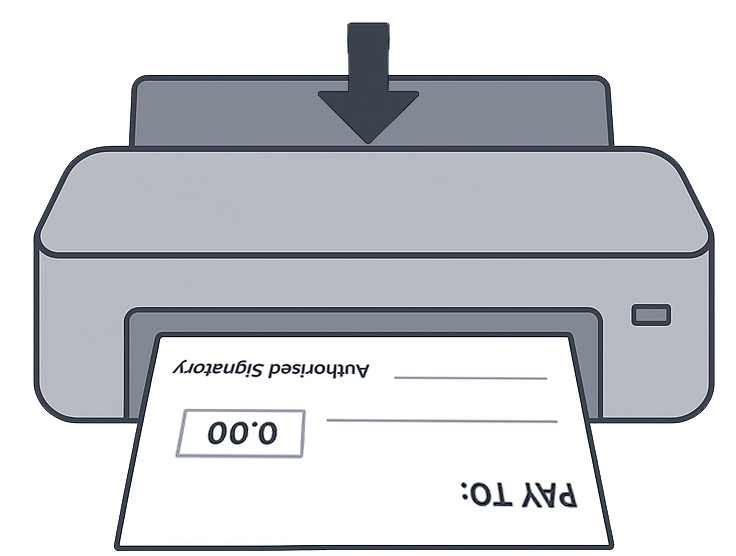
👈 Please insert the cheque into the printer in this position, as shown in the image.
Your cheque data is stored locally in your browser and is not transmitted to any server. For maximum security, clear your browser history after use if you're on a shared device.